

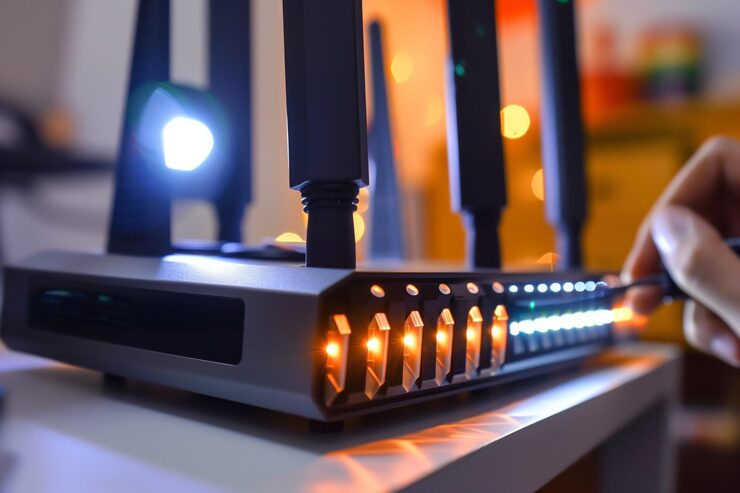
Setting up a MikroTik router for the first time can feel intimidating, especially if you’re new to networking or configuring business-grade hardware. The good news? With the right approach, tools, and a clear sequence, MikroTik devices are extremely flexible and reliable. This beginner-friendly guide is designed for users in Dubai and the UAE who want a clean, secure, and stable setup from day one without overcomplicating things.
Whether you’re configuring a router for a small office, home business, or client site, this walkthrough will help you complete a proper MikroTik router configuration Dubai professionals trust.
Why MikroTik Routers Are Widely Used in Dubai
MikroTik routers are popular across Dubai because they offer enterprise-level control at a reasonable cost. They’re commonly used by:
- SMEs and growing startups
- IT service providers and system integrators
- Warehouses, retail stores, and offices
- Internet service providers (ISPs)
Their strength lies in customization, routing, firewalling, bandwidth control, VPNs, and wireless management, which can all be handled from one device.
What You Need Before Starting
Before beginning your MikroTik router setup Dubai, make sure you have:
- A powered MikroTik router (RouterBOARD model)
- Ethernet cable(s)
- A laptop or desktop computer
- Internet connection details from your ISP
- WinBox software (recommended for beginners)
Most routers come with default settings, but for the best performance and security, a fresh configuration is strongly advised.
Step 1: Connect to the MikroTik Router
- Plug your computer into the router using an Ethernet cable
- Power on the router
- Open WinBox and click “Neighbors.”
- Select your router and connect using the default login
This direct connection ensures you can safely access the router before exposing it to the internet.
Step 2: Reset to a Clean Configuration
For beginners, starting clean avoids conflicts from factory presets.
- Go to System → Reset Configuration
- Check “No Default Configuration”
- Confirm and allow the router to reboot
This step is crucial for a professional-grade MikroTik router configuration Dubai setup.
Step 3: Assign Internet (WAN) and Local (LAN) Ports
Once the router restarts:
- Designate one Ethernet port as WAN (connected to ISP)
- Assign remaining ports as LAN (internal network)
Most Dubai ISPs use DHCP, so the router will automatically receive an IP address once the WAN is correctly assigned.
Step 4: Configure IP Addressing for Local Network
To allow devices to connect:
- Set a local IP address (e.g., 192.168.88.1)
- Enable a DHCP Server for LAN ports
This allows computers, phones, printers, and access points to receive IPs automatically.
A properly configured local network is the foundation of smooth daily operations.
Step 5: Set Up NAT for Internet Access
NAT (Network Address Translation) allows internal devices to access the Internet.
- Go to IP → Firewall → NAT
- Add a new rule:
- Chain: srcnat
- Out Interface: WAN
- Action: masquerade
Without this step, users won’t be able to browse online even if the router itself has internet access.
Step 6: Secure the Router (Critical Step)
Security is especially important in business environments.
At minimum:
- Change the default admin password
- Disable unused services (FTP, Telnet, MAC access if not needed)
- Limit management access to the LAN only
Dubai-based businesses often operate in shared or high-traffic networks, making security configuration a non-negotiable requirement.
Step 7: Basic Firewall Rules for Beginners
Even simple firewall rules greatly improve protection:
- Allow established and related connections
- Drop invalid packets
- Block unauthorized access from the WAN
You don’t need advanced rules to start, just a clean baseline that protects against common threats.
Step 8: Test Internet and Network Performance
After completing your MikroTik router setup Dubai, test:
- Internet access from multiple devices
- LAN-to-LAN connectivity
- Speed and stability
- Router CPU and memory usage
If everything works smoothly, your core configuration is complete.
Common Beginner Mistakes to Avoid
Many first-time users run into issues that are easy to prevent:
- Skipping the reset and using messy default configs
- Forgetting NAT rules
- Leaving admin access open from the internet
- Overloading the router with advanced features too early
Keeping the setup simple at first ensures stability and makes troubleshooting easier.
When to Get Professional Help
While MikroTik is beginner-friendly with guidance, some setups require expertise:
- Multi-branch office networks
- VPNs for remote staff
- Bandwidth control for large teams
- Failover and load balancing
In such cases, working with a local expert in Dubai can save time and prevent downtime.
Why Location Matters in Configuration
Dubai has diverse network environments, business towers, warehouses, retail spaces, and shared internet infrastructure. Proper configuration ensures compatibility with local ISPs, performance expectations, and compliance with business needs.
That’s why a structured, region-aware setup approach makes a difference.
Conclusion
A clean and well-planned MikroTik router configuration Dubai users rely on doesn’t require advanced networking knowledge, just the right steps in the right order. By starting with a fresh configuration, securing the router, and focusing on core connectivity first, beginners can build a reliable network that scales over time.
Once you’re comfortable with the basics, MikroTik allows you to grow into more advanced features without replacing hardware, making it a smart long-term choice for homes and businesses across the UAE.