

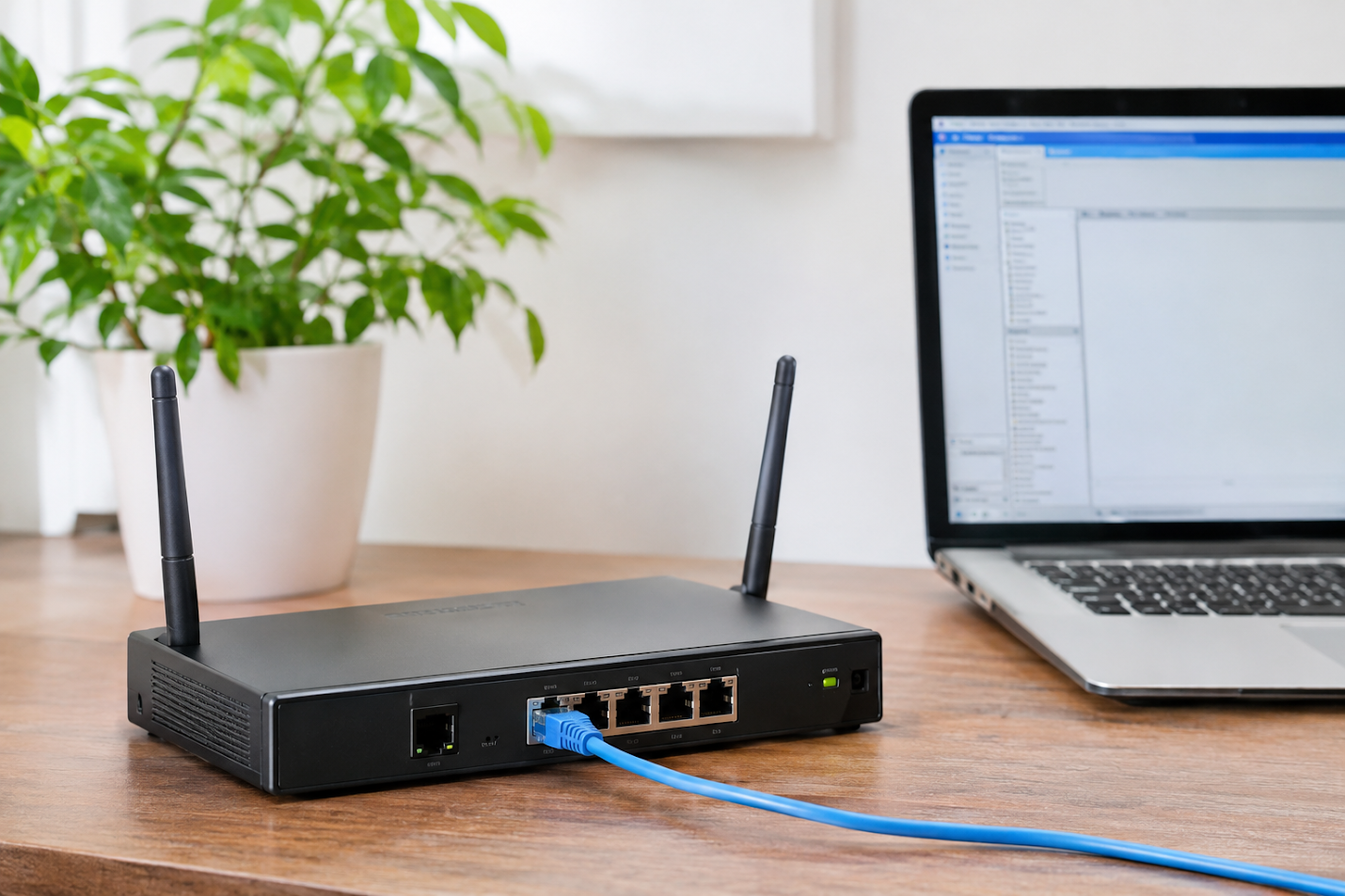
Nobody enjoys sitting in front of a router’s settings page with no idea what to click next. If you run a small office network or just want more say over your home internet, MikroTik RouterOS is worth a look. It controls your connections, your security, and how well your network performs.
Yes, the options look intimidating at first. Get the basics down, though, and setting up a MikroTik router turns out to be far less scary than it seems. Here’s how RouterOS works, how to do the first setup, and which features are actually worth your time.
What Is RouterOS and How Does It Work?
RouterOS is the operating system MikroTik built for its hardware. Install it on a compatible device, and that device becomes a proper router. It controls how your devices connect, communicate with each other, and get online. A regular home router hides most of this from you. MikroTik doesn’t. Everything sits in one system, and you get a lot more control over it.
That’s where MikroTik network management comes in. You can watch your traffic, adjust security settings, see which devices are connected, and limit how much bandwidth each one gets.
The newer RouterOS v7 adds modern routing features and VPN support. So it’s fine for a home setup, a small office, or a bigger business network. You can manage it through Winbox, a web browser, or the command line. Pick whichever feels least painful.
RouterOS License Levels Explained
Before you get into MikroTik configuration, spend a minute on licensing. It’s quick, and it saves confusion later. MikroTik has several RouterOS license levels, and which one you get depends on your hardware and what you need from it:
- Level 1 is a demo version with limited functionality.
- Level 3 is for wireless client use on compatible systems.
- Level 4 covers standard routing and wireless access point use.
- Level 5 raises the limits on some networking features.
- Level 6 has the highest limits of the standard levels.
Most MikroTik devices ship with the right license already, so you probably won’t buy anything. The exception is installing RouterOS on your own x86 hardware. In that case, check the license options first and choose deliberately.
How to Set Up a MikroTik Router for the First Time
A first MikroTik router setup goes smoothly if you follow the steps in order.
Plug the cable from your internet provider into the WAN port. Connect your computer to a LAN port with an Ethernet cable. Power the router on and wait until it finishes booting.
One thing before you touch any settings: look up the manual for your exact model. Default ports and settings aren’t the same on every device, and it’s annoying to find that out halfway through.
Connecting with Winbox
MikroTik Winbox is a graphical tool for managing RouterOS, so you don’t need to memorize commands. Download it from MikroTik’s official website and open it. Here’s how the first MikroTik router login works:
- Open Winbox and go to the Neighbors tab.
- Check the list for your router. If you’re not sure which one it is, match it by the IP or MAC address.
- Select it and type the username, usually admin.
- If it asks for a password, use the one printed on the device label.
- Click Connect, and the configuration interface opens.
Many MikroTik routers use 192.168.88.1 as the default local IP address.
Once you’re in, change the administrator password straight away. Don’t leave it for later.
Basic Internet, DHCP and Firewall Settings
If you’re asking how to configure MikroTik router settings, three things matter most.
Internet connectivity
Open the IP settings and look at your WAN connection. Many providers use automatic DHCP. Others want PPPoE credentials or a static IP, so check what yours expects.
DHCP configuration
A MikroTik DHCP setup automatically hands out IP addresses to your devices, so you don’t have to assign them one by one. Go to IP, then DHCP Server, and see if one is already running. If it is, leave it alone. Set up a new one only if your network really needs it.
Firewall protection
Look through your MikroTik firewall rules before changing anything. Many home models come with sensible defaults already. Unless you know why your network needs something different, keep them. To finish your MikroTik basic configuration, make sure the internet actually works, then save a backup.
Useful RouterOS Features for Businesses
Once a business grows, basic internet isn’t enough. People need stable connections for meetings and customer calls, and just to get through the day.
RouterOS has a few features that help here.
Bandwidth control
MikroTik bandwidth management lets you split capacity between users or departments. Then one person downloading a huge file doesn’t slow down everyone else.
Remote connectivity
A MikroTik VPN setup lets approved people reach the office network from outside through an encrypted connection.
Traffic monitoring
You can track what’s happening on the network and spot anything that looks odd.
Network segmentation
VLANs keep departments, staff devices, and guest Wi-Fi separate. You don’t need all of these on day one. It’s good to know they’re there when you do.
Tips for Keeping Your MikroTik Router Secure
Think about security from the start, not after something goes wrong. Use a strong admin password and install stable RouterOS updates when they come out. Turn off services you don’t use, and only allow management access from devices you trust. Don’t expose Winbox or any admin interface to the public internet. It’s an easy mistake to avoid.
Every so often, review your firewall settings, and always back up your configuration before a big change. If you’re new to this, treat MikroTik for beginners as a habit-building exercise. These small habits prevent most of the headaches.
Frequently Asked Questions
What is MikroTik RouterOS used for?
MikroTik RouterOS handles internet routing, network security, bandwidth allocation, and VPN connections. It also manages how your connected devices communicate.
How do I log in to a MikroTik router for the first time?
Attach your computer to the router and open Winbox or WebFig.Enter the router’s default address and the username and password for your device.
What are the RouterOS license levels?
The standard options are Levels 1, 3, 4, 5, and 6. Each has different features and limits.
Is MikroTik RouterOS difficult for beginners?
It can be, at first, mostly because of the networking jargon. Winbox and the default configuration make the initial setup a lot easier, though.
How can I secure a MikroTik router?
Set a strong password, keep RouterOS updated, and stick with sensible firewall rules. Also, block any remote management access you don’t need.